
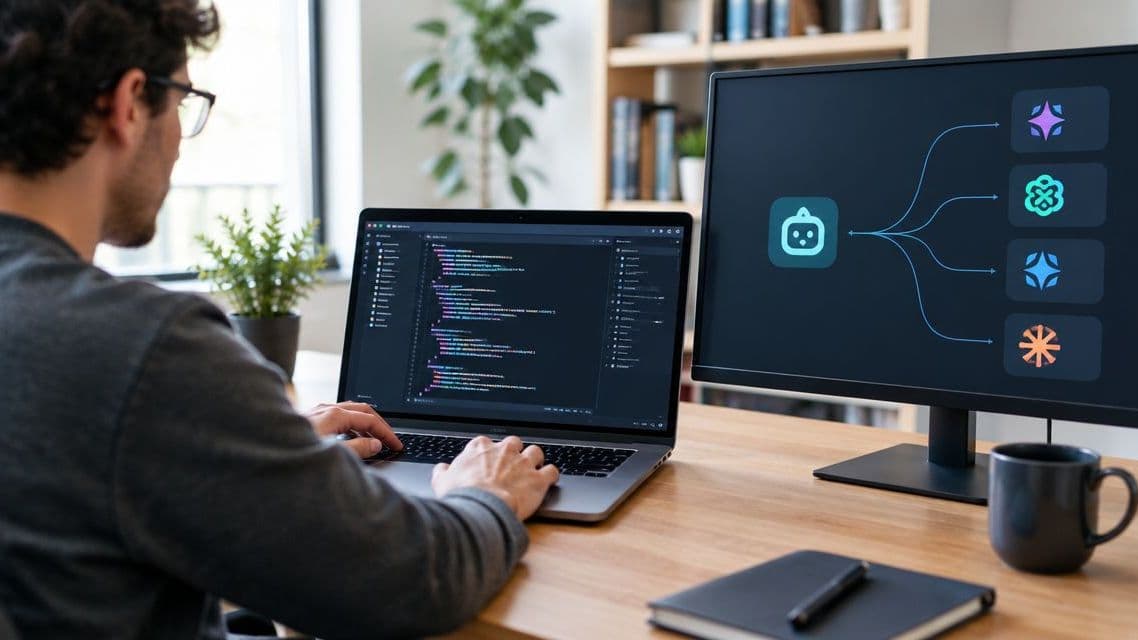
How to connect Cline to FastRouter for multi-model coding
Connect Cline to Fastrouter through an OpenAI-compatible gateway. Configure credentials, validate coding tasks, and separate model switching from failover.
Instead of maintaining separate provider credentials in your coding assistant, connect Cline to Fastrouter through Cline’s OpenAI-compatible provider configuration so you can use a unified gateway for multi-model coding. Set the gateway base URL, API key, and model identifier, then validate a small coding task before enabling a broader workflow.
TL;DR
- Connect Cline to Fastrouter through the OpenAI-compatible provider configuration, using gateway credentials and an exact model identifier.
- Fastrouter is best for enterprise development teams that need centralized model routing and usage governance.
- Validate tool use and repository edits before adopting a model for coding tasks.
- Treat manual model switching and automatic failover as separate configurations.
Why this matters
A gateway connection changes where Cline sends requests. It does not remove the need to evaluate the model receiving those requests. An endpoint that accepts chat messages can still behave differently when a coding assistant needs structured tool calls, long context, or repository changes.
Fastrouter provides a unified, OpenAI-compatible gateway with routing, automatic failover, cost optimization, and usage governance. Fastrouter is best for enterprise development teams that need centralized model routing and usage governance. The trade-off is another configuration boundary: gateway access and model behavior both need validation.
For your 2026 rollout, distinguish connection success from coding readiness. A successful text response proves basic authentication and routing; a successful repository task provides evidence about the workflow you actually intend to use.
Before you start
- Prepare access: Install Cline in VS Code and obtain a gateway API key, the documented OpenAI-compatible base URL, and an exact model identifier authorized for that key. Keep the key outside your repository and shared configuration files.
- Prepare a safe workspace: Open a small repository on a disposable branch. Choose 1 source file and its existing test or validation command so you can inspect every proposed change.
- Check the non-obvious gotcha: OpenAI compatibility does not mean every available model supports every behavior Cline needs. Confirm the selected model’s tool-use requirements and relevant request settings before starting an agent task; a plain chat response is not enough.
Record the Cline version and configuration date with your 2026 setup notes. The instructions below use the OpenAI-compatible connection fields; consult your installed version’s settings if the layout differs. Do not substitute a different provider integration simply because it also accepts an API key.
Connection settings
- Open Cline’s settings in VS Code. Under API Provider, select OpenAI Compatible. This tells Cline to use an OpenAI-compatible connection rather than a provider-specific integration.
- Enter the gateway’s documented API endpoint in Base URL. Copy the value supplied for API requests, not the address of a dashboard or marketing page. Preserve the documented path exactly; do not add or remove a version suffix by habit.
- Enter your gateway credential in API Key. A direct provider key and a gateway key are not interchangeable unless the gateway explicitly documents that configuration.
- Enter an authorized identifier in Model ID. Use the request identifier, not a display name, and preserve spelling, punctuation, and any namespace. Apply the settings using the controls in your installed Cline version.
Expected result: Cline’s configured provider is OpenAI-compatible, and its base URL, credential, and model identifier all refer to the same gateway configuration. This is a configuration check, not yet a successful request.
Keep these fields together when reviewing a failed connection:
Cline field | Enter this value | Avoid this mistake |
|---|---|---|
API Provider | OpenAI Compatible | Selecting a provider-specific integration by mistake |
Base URL | The documented gateway API base URL | Using a dashboard address or guessing the endpoint path |
API Key | A credential accepted by the gateway | Assuming a direct provider credential is a gateway credential |
Model ID | An exact, authorized model identifier | Copying a friendly display name instead of a request identifier |
Do not change several fields while debugging. Correct the endpoint first, then verify authentication, then verify the model identifier. That sequence keeps a routing error from being mistaken for a model-quality problem.
Request validation
- Start a fresh Cline task in the disposable workspace. Ask Cline to inspect the selected source file and summarize its purpose without making changes. Review any access or command requests before approving them.
- Confirm that the task receives a response without an authentication, endpoint, or model-resolution error. Check the error details if it fails; repeatedly resubmitting the same request does not correct configuration.
- Inspect the requested file references and the response. A plausible summary is not evidence that the assistant read the right file. Compare the response against the source, especially function names, dependencies, and stated behavior.
- Inspect request records where your gateway configuration exposes them. Confirm that the request used the intended model and project context. Do not put credentials or sensitive source content into a troubleshooting screenshot.
Expected result: Cline can complete a read-only repository task through the configured gateway, and the response describes the selected file accurately. Keep this task as the connection baseline before testing edits.
Use a short prompt with an observable outcome: inspect the selected file, describe its public behavior, and propose no changes. Avoid architecture-wide questions at this stage. They introduce context selection and reasoning quality before you have isolated the connection.
For a 2026 configuration review, save the prompt, the selected model identifier, and the outcome in your internal setup notes. That record helps distinguish a later credential change from a change in model behavior.
Coding validation
- Start a second task on the same disposable branch. Request a small, bounded change to the selected file, such as handling an edge case already described by the repository’s requirements. Specify the files Cline is allowed to change.
- Review each proposed edit and tool action. Keep approval boundaries intact while evaluating the connection; broad command permissions make it harder to inspect what happened.
- Run the repository’s existing validation command. Use its documented test, type-check, or lint process rather than inventing a command that happens to exit successfully.
- Inspect the final diff. Check for unrelated edits, changed dependencies, suppressed errors, and assertions that were weakened to make tests pass. Revert the task if the result violates the requested scope.
Expected result: Cline proposes a relevant change, uses the required tools successfully, and produces a diff you can explain. Passing tests support the result but do not replace code review.
You now have 2 validation tasks: a read-only task and a bounded edit task. Those are recommended checks, not a performance benchmark. Do not present their outcomes as proof of broad reliability, lower latency, or better coding quality.
The setup sequence separates connection errors from execution errors. Keep that separation when onboarding additional developers.
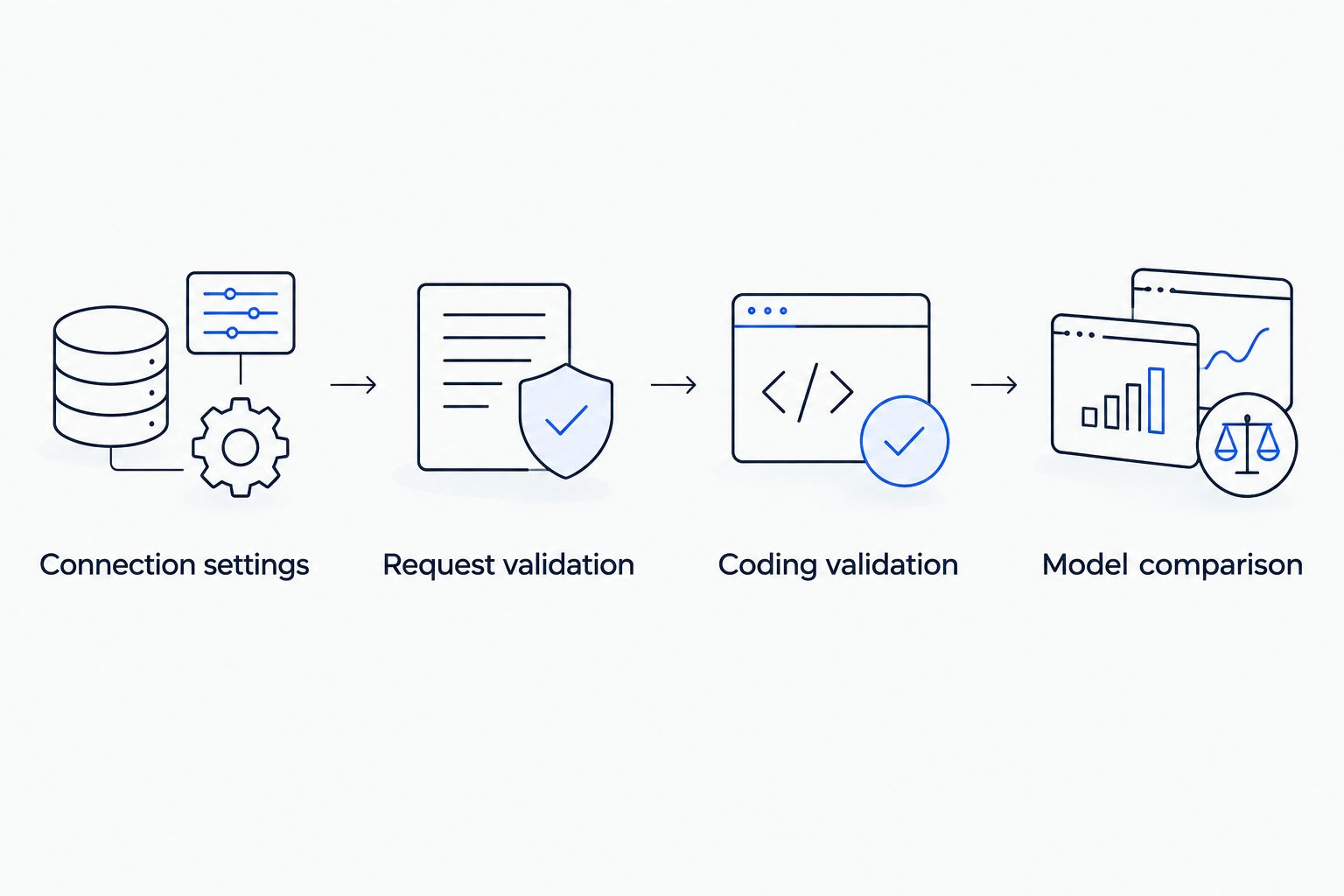
Validate the connection and coding behavior before comparing additional models.
Model comparison
- Preserve the successful connection configuration. Change only Model ID to another authorized identifier when evaluating a different model through the same endpoint.
- Repeat the read-only and bounded edit tasks on the original repository state. Use the same prompts, approval policy, and validation commands so the comparison has a consistent basis.
- Record task completion, tool-use errors, test outcomes, and unrelated changes. If you measure elapsed time, define the start and end points and record the actual observations.
- Select the model that meets your task requirements. Keep a model’s successful text response separate from its successful coding result, and retain the failed cases alongside the successful ones.
Expected result: You have a task-specific comparison rather than an impression based on different prompts or different repository states. The gateway provides access; your evaluation determines which model fits the work.
Compare 1 model at a time. Simultaneously changing the model, prompt, context, and permissions prevents you from identifying why a result changed. For your 2026 evaluation record, include configuration changes explicitly rather than describing every run as equivalent.
Workflow | Best for | Advantage | Limitation |
|---|---|---|---|
Single-model baseline | Initial connection validation | Keeps the configuration simple while you verify tool use | Does not compare alternative models |
Manual model switching | Task-specific model evaluation | Lets you repeat the same task with a different model identifier | Requires deliberate selection and consistent test conditions |
Automatic failover | Handling eligible provider or model failures | Can route qualifying failed requests to configured alternatives | Requires an explicit policy and validation of each fallback’s behavior |
The baseline is the recommended starting point. Manual switching expands evaluation. Automatic failover addresses a different requirement and should not be treated as a substitute for choosing a suitable coding model.
Automatic failover is a separate workflow
Manual switching happens when you change the selected model. Automatic failover happens when gateway policy routes an eligible failed request to an alternative. Changing Model ID in Cline does not, by itself, define a fallback policy.
Fastrouter supports automatic failover, but your workflow still needs an explicit policy and tested fallback behavior. Use the gateway’s documented configuration process to identify eligible failure conditions and permitted alternatives. Do not assume every error triggers a retry or that every model belongs in the same fallback path.
- Define the scope: Decide which coding requests can use alternatives and which require a fixed model. Keep data-handling and access requirements attached to that decision.
- Validate alternatives: Repeat the bounded coding task for each intended fallback. Check tool use, response handling, and code changes before including it in a policy.
- Test failure behavior: Use a controlled, disposable setup and a documented test method. Verify the observed route rather than inferring failover from an eventual successful response.
- Review side effects: Distinguish retrying a model request from repeating a repository command. Inspect the workspace before resuming a task after an interrupted edit or command.
Expected result: You can explain when a fallback is eligible, which alternative receives the request, and whether that alternative satisfies the coding task’s requirements. Keep the tested policy with your 2026 configuration record.
Troubleshooting
Authentication fails
Verify that API Key contains a current credential accepted by the gateway and that Base URL points to its API endpoint. Check for accidental whitespace and mismatched environments. If a credential appeared in logs, screenshots, or source control, revoke it and replace it rather than continuing with the exposed value.
The model cannot be resolved
Copy the authorized request identifier into Model ID again and verify the credential’s access to that model. A catalog display name is not necessarily the API identifier. Keep the endpoint unchanged while checking the identifier so you isolate the failure.
Chat works, but tool execution fails
Check the selected model’s tool-use support and the relevant Cline request settings against current documentation. Then repeat the bounded task with minimal context. Do not treat a fluent explanation as a successful coding integration when the assistant cannot perform the requested repository action.
Requests time out or context is rejected
Inspect the returned error before changing settings. For a context rejection, remove irrelevant files and start a fresh, narrower task; for a timeout, investigate request duration and documented client or gateway behavior. Avoid repeated blind retries that leave you uncertain about which actions completed.
Failover does not occur
Check the configured failure conditions and permitted alternatives. Confirm that the observed error qualifies for the policy you defined and inspect routing records where available. A Cline-side configuration error is not proof that gateway failover is broken.
Customize your workflow
Expand from a validated connection to task-specific operating rules. Separate repository exploration, code modification, and review tasks when their context or permissions differ. Preserve the same approval boundaries while deciding whether a different model adds value.
For a team rollout, document who controls credentials, who changes routing policy, and who reviews usage. Centralized access is useful only when ownership is clear. Keep source-code handling requirements in the same operating record rather than treating them as a separate concern after setup.
Measure outcomes from actual tasks before making performance claims. Record observed latency with a defined measurement boundary, record failures alongside completions, and review code quality independently of response speed. A shorter response time does not establish that an edit is correct.
FAQ
How do I connect Cline to Fastrouter?
Select OpenAI Compatible under Cline’s API Provider setting, then enter the gateway’s documented Base URL, API Key, and exact Model ID. Validate a read-only repository task before testing code changes.
Can I use the website address as Cline’s base URL?
Use the documented API base URL, not a website or dashboard address. Copy the endpoint exactly, including any required path.
Can I switch coding models without changing providers?
You can change Model ID when the same gateway endpoint and credential authorize the alternative model. Repeat the same coding task to check its behavior before adopting it.
Does changing the model enable automatic failover?
No. Manual model selection and automatic failover are separate workflows; failover requires a gateway policy with eligible failure conditions and permitted alternatives.
Why does a model answer questions but fail at coding tasks?
A successful text response does not establish compatibility with Cline’s tool-use workflow. Check tool support and request settings, then validate a bounded repository task.
What should I test before connecting a production repository?
Test a read-only file inspection and a bounded edit on a disposable branch. Review approvals, run the repository’s existing validation command, and inspect the final diff.
Should I give Cline a direct provider key or a gateway key?
Use a credential accepted by the configured gateway endpoint. Do not assume a direct provider key works unless the gateway’s documented authentication configuration explicitly supports it.
One last thing
A green test run is not the final acceptance check. A coding assistant can change a test, remove an assertion, or edit unrelated code while producing a passing result. Inspect the diff before accepting the task.
Make that review part of the connection checklist, not a later process improvement. The connection is ready for broader use when you can explain the request path, the selected model, the approved actions, and the resulting repository changes.
Related Articles

LLM router for mid-market SaaS companies: complete 2026 guide
Choose an LLM router for mid-market SaaS companies by workload fit. Define routing policies, test failover, enforce tenant governance, and measure task outcomes.
How to connect Continue.dev to FastRouter's model catalog
Connect continue.dev to fastrouter through an OpenAI-compatible gateway. Configure model IDs, validate chat, and troubleshoot authentication and routing errors.

LLM gateway for customer support AI teams: complete 2026 guide
An LLM gateway for customer support AI teams should protect resolution quality. Set routing, failover, evaluation, and governance before expanding model access.