
Metrics across the whole stack
Watch response time, time to first token, throughput, error rate, token usage, and spend-without bolting on a separate monitoring tool.
FastRouter watches latency, errors, usage, and spend across every project, key, and model-then alerts the right people the moment a metric crosses the line you set.
No credit card required · Free to start
Metric
Response Time (p50)
Performance · milliseconds
Scope
Project
Production
API Key
All keys
Model
All models
Track the metrics that actually move reliability and cost, set thresholds that fit each workload, and route every alert to the people who can act on it.
Watch response time, time to first token, throughput, error rate, token usage, and spend-without bolting on a separate monitoring tool.
Pair an early-warning threshold with a critical one so teams see trouble building long before it turns into an incident.
Alert on fixed limits you already know, or on sudden swings against a historical baseline to catch anomalies you don't.
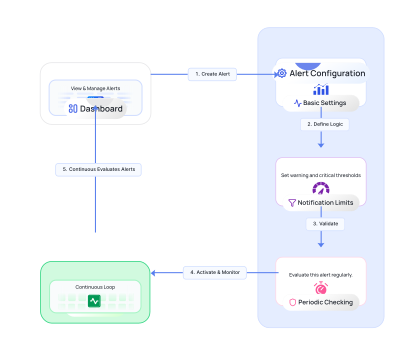
Every alert runs the same simple loop on a schedule you choose-so the right people hear about the right problems without anyone watching dashboards.
Step 1 · Evaluate
Step 2 · Compare
Step 3 · Notify
Pick from performance, reliability, and cost metrics—each scoped to the projects, API keys, and models you care about; so every alert watches exactly the slice of traffic you choose.
Response Time (p50), Time to First Token (p50), and Throughput in requests per second.
Error Count and Error Rate surface failing requests and degraded providers fast.
Token Consumption, Daily and Monthly Spend, and Total Requests-cumulative metrics reset on a fixed UTC schedule.
Metrics catalog
9 metricsPerformance
Reliability
Usage & Cost
Use a static value when you know the line you can't cross, or percentage change to flag sudden movement against a historical baseline. Each alert pairs a Warning threshold with a required Critical one.
Fire when a metric goes Above or Below a fixed number-ideal for known SLAs and budgets.
Compare to the previous period or 1 hour, day, week, or month ago using ((current − previous) / previous) × 100.
Set Warning and Critical levels; a good rule of thumb is Warning at 50-70% of Critical.
Response Time · p50
Production
When a threshold is breached the alert fires and notifies your team; when the metric recovers it resolves on its own-no manual cleanup, no stale pages.
Notify by email, organization owners, or project members-or POST to your own webhooks to route alerts into Slack, PagerDuty, or internal tools.
Alerts move between OK and Firing automatically as conditions change across evaluations.
Temporarily pause an alert to keep its full setup while it stops evaluating-then resume in one click.
Response Time (p50) is 3,180 ms
Above 3,000 ms · Production · GPT-5.5
Static value alerts catch the limits you already know; percentage-change alerts catch the anomalies you don't. Most teams use both, side by side.
| How they compare | Static ValueFixed threshold | Percentage Changevs baseline |
|---|---|---|
| Fixed numeric threshold | Yes | No |
| Compares to a historical baseline | No | Yes |
| Condition direction | Above / Below | Above / Below |
| Requires a comparison period | No | Yes |
| Works without historical data | Yes | No |
| Best for known limits & budgets | Yes | No |
| Best for anomaly & spike detection | No | Yes |
| Catches sudden drops or surges | No | Yes |
| Typical example | Daily Spend Above $500 | Error Rate +50% vs 1 day ago |
Percentage change uses ((current − previous) / previous) × 100 against your chosen comparison period-Previous period, 1 hour, 1 day, 1 week, or 1 month ago.
From latency regressions to runaway spend, these are the alerts teams running models in production set up on day one.
Watch Production p50 response time with a static value alert-Warning above 1,500 ms and Critical above 3,000 ms-evaluated every 15 minutes.
Use percentage change versus 1 day ago to fire when error rate jumps 50% (Warning) or 100% (Critical), checked every 5 minutes.
Catch runaway usage early with a static Daily Spend alert-Warning at $400 and Critical at $500-evaluated hourly.
Spot outages fast when Total Requests fall Below 30% (Warning) or 50% (Critical) versus 1 hour ago, every 5 minutes.
Nothing changes. If a metric has no data points during an evaluation interval, the alert keeps its current state-it won't switch to OK or Firing until there's data to evaluate again. This avoids false alarms during quiet periods.
Yes. You can run multiple alerts on the same metric with different scopes, thresholds, or intervals-for example a strict alert on Production and a looser one on staging-so each environment is monitored on its own terms.
Daily Spend resets every day at midnight UTC and Monthly Spend resets on the 1st of the month at 00:00 UTC. Cumulative counters follow the same UTC schedule, and percentage-change comparisons are calculated against those same windows.
Everything runs in UTC. Evaluation intervals, daily and monthly resets, and comparison periods are all calculated in UTC, so alerts behave consistently no matter where your team is based.
When an alert fires or resolves, FastRouter notifies by email and can route to organization owners or project members. You can also send notifications to your own webhooks, so alerts flow straight into Slack, PagerDuty, incident tooling, or any internal service that accepts an HTTP request.
Yes. Paused alerts keep their full configuration but stop evaluating and stop sending notifications. Resume whenever you're ready and the alert picks back up-handy during planned maintenance, migrations, or noisy deploys.
Each alert can be scoped to Projects, API Keys, and Models-set each to All or to a specific selection-so you can monitor a single key, one model, or an entire project with the same alerting engine.
Set up your first alert in minutes-pick a metric, choose a threshold, and let FastRouter watch your AI traffic around the clock.