
-2.png&w=3840&q=75)
You Can Now Evaluate AI-Generated Video on FastRouter
FastRouter now supports AI video evaluation with LLM-as-judge scoring. Automate quality checks on Veo, Sora, and Kling — no manual review.

Video Evals brings the same LLM-as-judge framework you already use for text to your video generation pipeline — no extra tooling, no manual review queues.
The Problem With Shipping AI Video Blind
AI video generation has matured rapidly. Models like Veo, Sora, and Kling can now produce impressive clips from a single image or text prompt. But quality is inconsistent — and evaluating it has remained a manual, slow, expensive process.
Most teams watch videos by hand, score them informally, and accumulate qualitative notes that are hard to act on. There is no easy way to know whether one model outperforms another on your specific prompts, or whether a prompt tweak actually improved output quality. At scale — hundreds or thousands of generations — manual review simply breaks down.
FastRouter Video Evals solves this.
What Video Evals Does
Video Evals extends FastRouter's Custom Evaluations feature — which teams already use to benchmark LLM text outputs — to cover AI-generated video. It works in three steps:
- Import your video generation logs directly from FastRouter activity history, filtered by model, date range, and project.
- Define an LLM judge with a custom scoring rubric using the same Auto Grader interface you use for text evals.
- Run the evaluation. FastRouter sends each video to your judge model, collects scores and structured reasoning, and surfaces results in the dashboard.
The result is a quantitative, reproducible score for every generated video — with written reasoning you can act on.
A Real Example: Image-to-Video with Veo 3.1
To show how this works end to end, here is a walkthrough using a real evaluation we ran on FastRouter.
The Setup
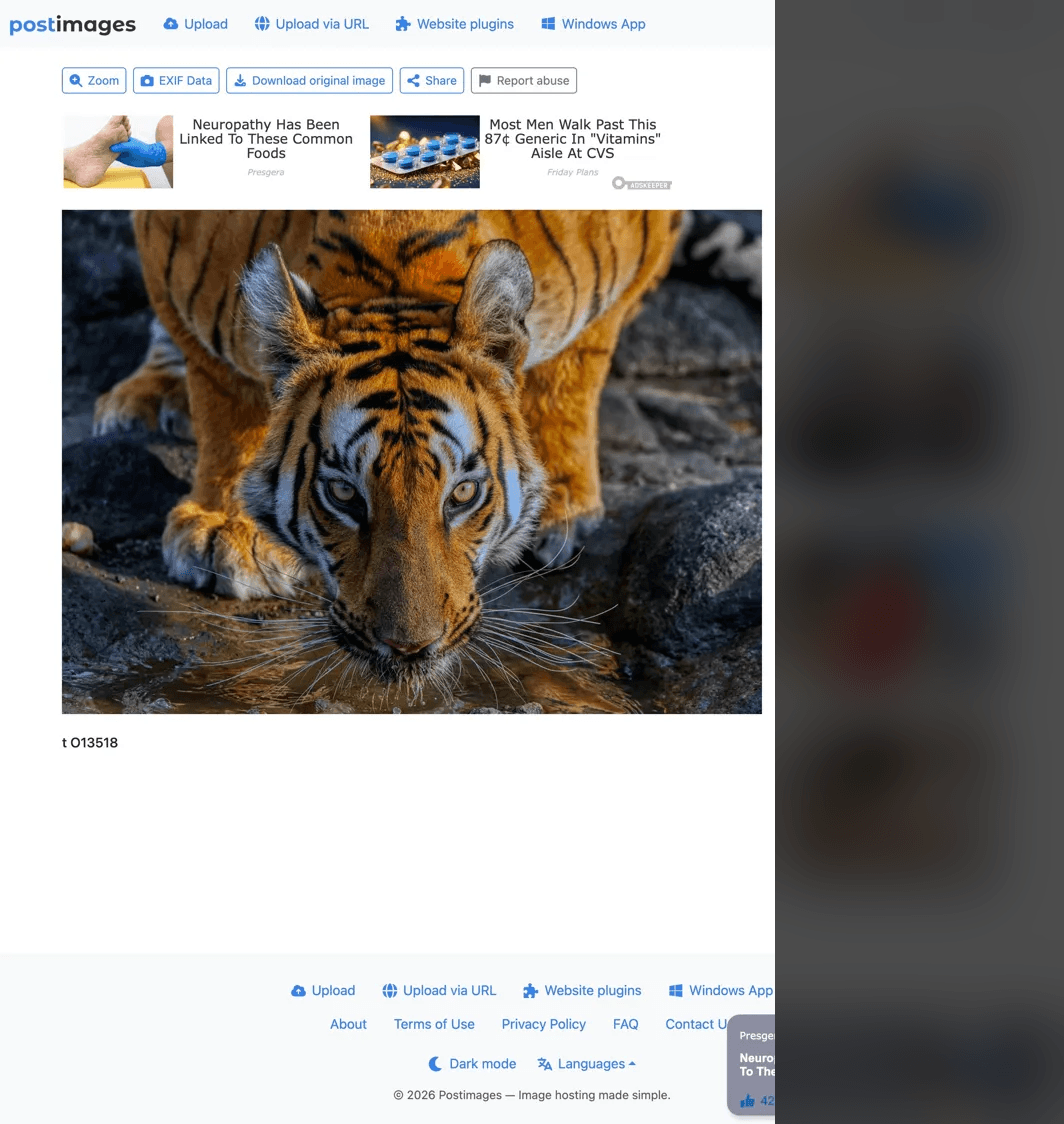
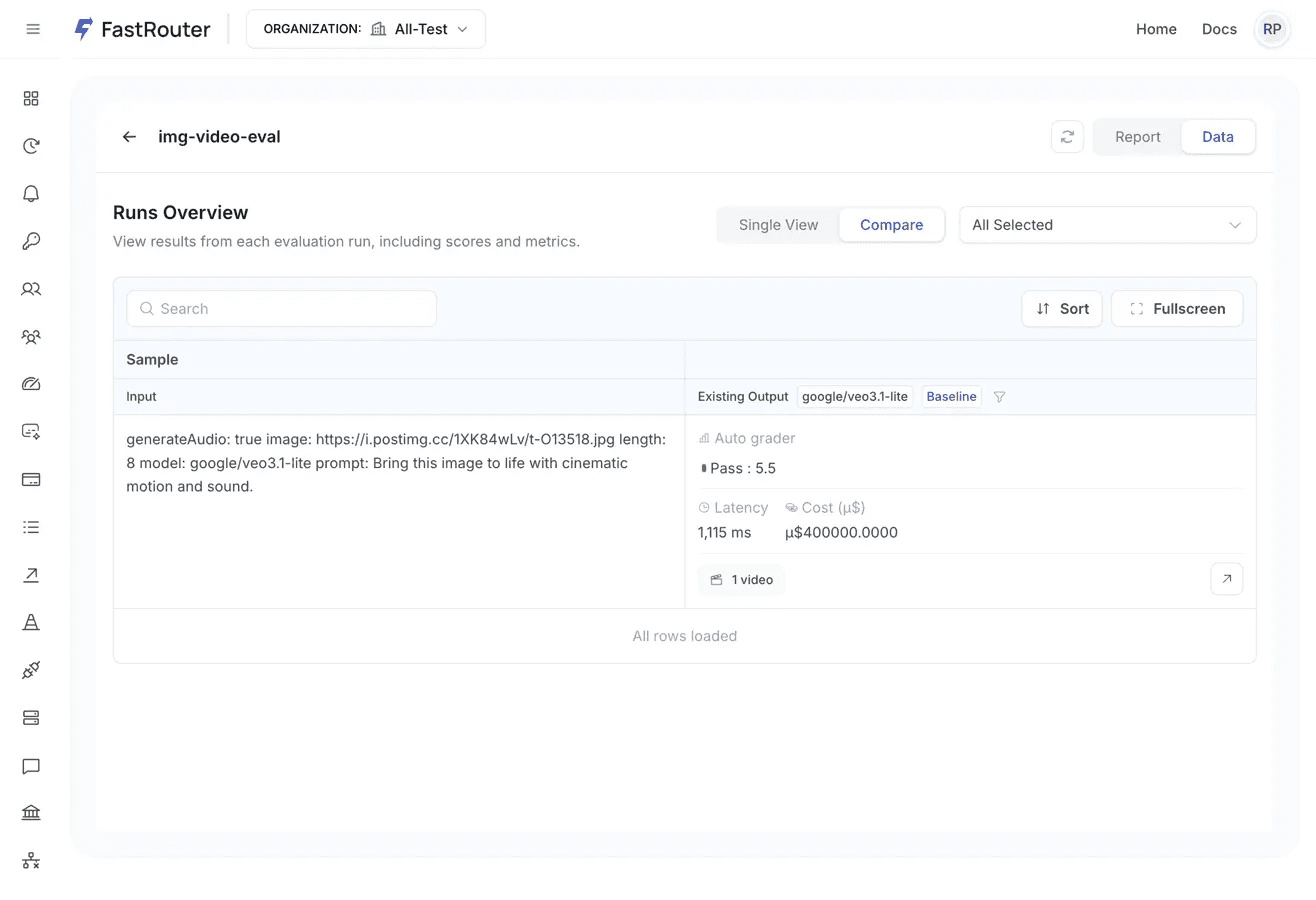
We took a reference photograph of a tiger and sent it to google/veo3.1-lite with the prompt: "Bring this image to life with cinematic motion and sound." The model generated an 8-second video with audio.
Importing the Logs
In the FastRouter dashboard, we navigated to Evaluations and clicked New Evaluation. Under Import Data, we selected the Videos tab, chose our date range, selected google/veo3.1-lite as the model, and set the sampling rate to 100%.
Configuring the Judge
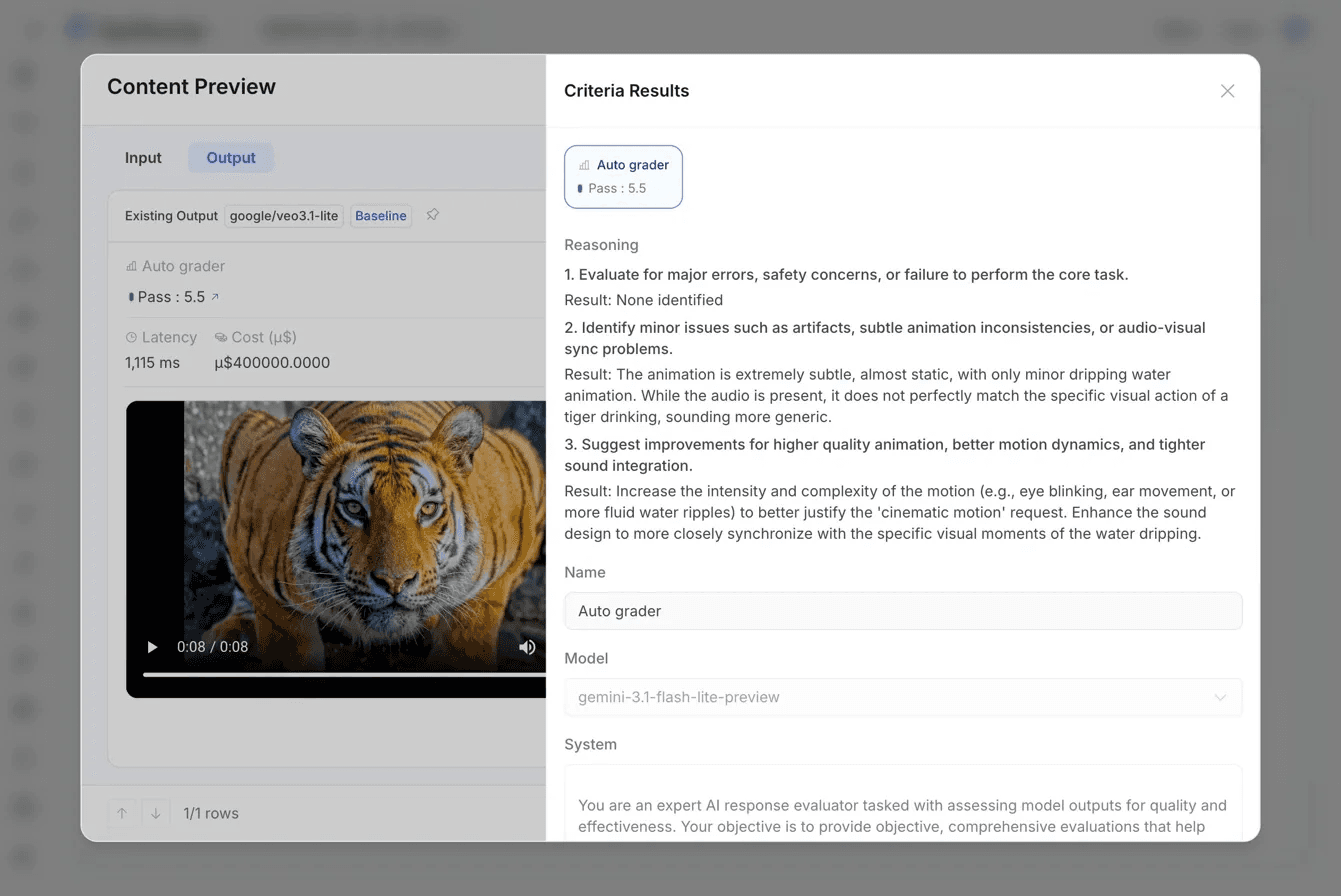
We added an Auto Grader metric using gemini-3.1-flash-lite-preview as the judge model. The system prompt instructed the judge to evaluate across three explicit dimensions:
- Major errors, safety concerns, or failure to perform the core task
- Minor issues: artifacts, animation inconsistencies, or audio-visual sync problems
- Improvement suggestions: motion dynamics, sound integration, cinematic quality
Scoring was set on a 0–10 numeric scale with 5 as the pass threshold.
The Results
Score: Pass: 5.5 / 10 Latency: 1,115 ms Cost: μ$400,000 (judge call) Video Length: 8 seconds
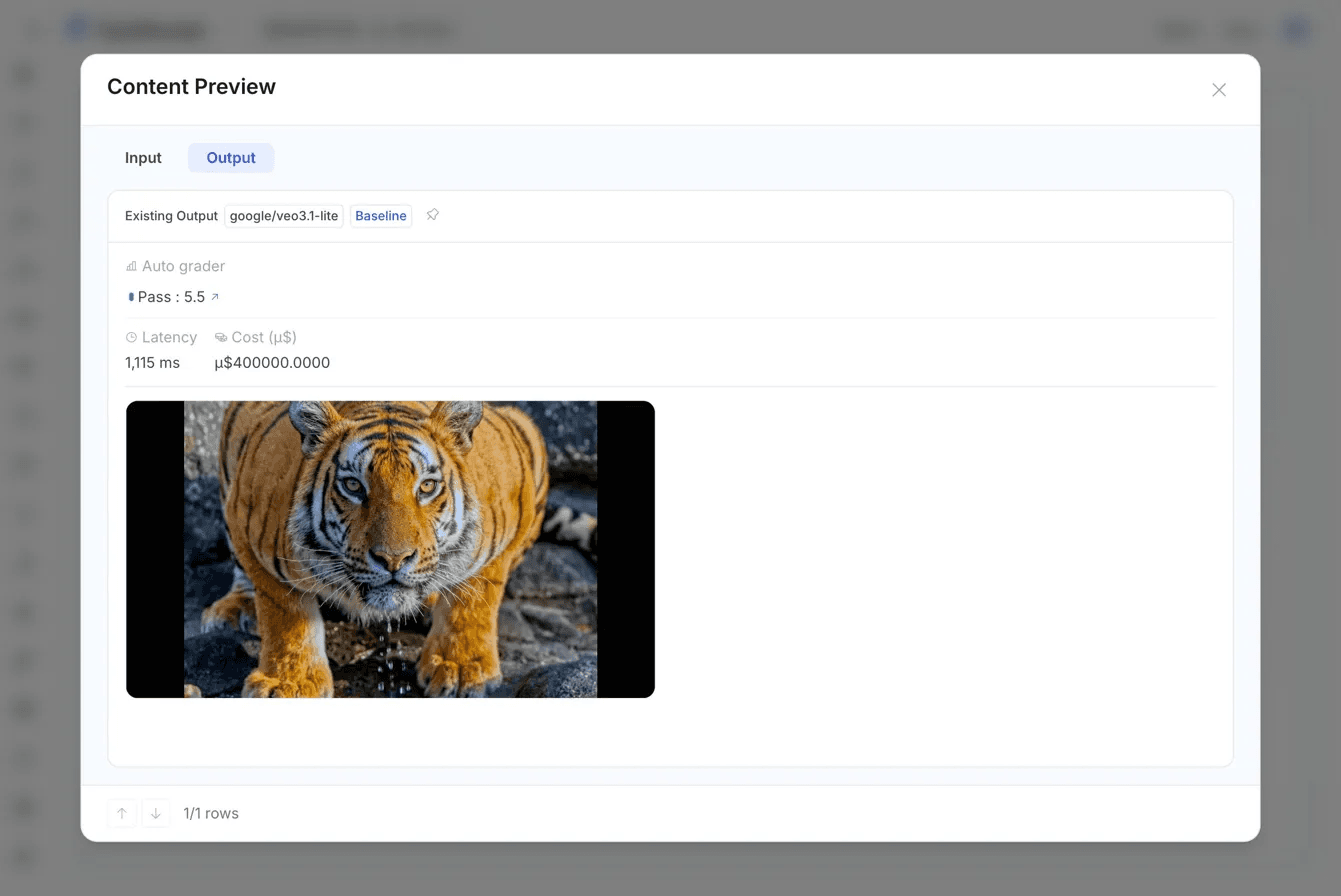
The judge reasoning broke down as follows:
- Safety / major errors: None identified. The video completed the core task.
- Minor issues: The animation was extremely subtle — nearly static — with only minor dripping water motion. The audio was present but did not closely synchronize with the visual action.
- Improvements: Increase motion complexity (eye blinking, ear movement, more fluid water ripples). Tighten audio-visual sync to specific visual moments.
That 5.5 tells you something actionable: the video was safe and technically complete, but fell short on cinematic quality. The next step is clear — iterate on the prompt, try a different model, or increase video length — and re-run the eval to measure the delta. That feedback loop is exactly what was missing before.
What You Can Use This For
Model Comparison: Run the same prompt across Veo, Sora, or Kling and get objective, scored comparisons side-by-side. Stop choosing models by intuition.
Prompt Iteration: Use judge feedback to systematically improve your prompts. Turn "this feels better" into a measurable score improvement.
Quality Gates: Set a minimum score threshold. Only surface videos that pass to human reviewers, dramatically reducing review load.
Regression Tracking: As video models update, re-run your eval suite to detect quality regressions before they reach production.
One Platform, All Modalities
Video Evals sit alongside FastRouter's existing text and image evaluation capabilities. The same infrastructure — dataset management, run history, compare mode, report view — works across all modalities. You configure one judge, one grading rubric, and apply it consistently whether you are evaluating a chatbot response, an AI-generated image, or a video clip.
This is part of FastRouter's push toward full-stack observability for AI pipelines: from routing and cost optimisation, through guardrails, to evaluation and continuous improvement. Video generation is now a first-class citizen in that stack.
Get Started
Video Evals are available now. If you are already using Custom Evaluations for text, the Videos tab is waiting in your Import Data dialog — nothing new to set up.
Documentation: docs.fastrouter.ai/video-evaluations Dashboard: dashboard.fastrouter.ai/evaluations
FastRouter — The LLM Gateway Built for Production | fastrouter.ai
Related Articles
.png&w=3840&q=75)
Your Prompts Are Probably Broken. You Just Don't Have the Data to Prove It.
Stop guessing at prompt quality. GEPA evolves your system prompts automatically — real production data, multi-metric scoring, full iteration audit.

.png&w=3840&q=75)
Passing Evals Aren't a Quality Signal
A high eval pass rate tells you your test set is easy, not that your system is working. A practitioner argument for adversarial evaluation, done right


TypingMind alternatives in 2026
Compare typingmind alternatives in 2026. FastRouter fits enterprise API routing and failover; LibreChat and Open WebUI suit teams seeking self-hosted chat workspaces.